
Turn each lecture into a clear next step.
Use your notes, readings, and past exams to build focused practice. This guide shows you how to move from your first upload to a study routine that helps you find weak topics and decide what to do next.
Updated 12 October 2026 · Built from the BetterGrades mobile student journey.
Inside this guide
Build
A useful study set from one course source
Practise
Quizzes, flashcards, and Coach prompts
Focus
Weak topics and your next study action
Keep going
Routines, offline review, and optional challenges
12 sections · 10 quick answers · PDF companion
Use it as a playbook
Follow the loop, then go deeper where you need it.
Start with the first four steps. After that, return to the section that matches your next study decision. You do not need to read the guide in one sitting.
Start here
Build your first useful study set
BetterGrades works best when each session follows the same loop: add the material your course uses, practise from it, review what you missed, then choose the next topic. Start with one course and one source so you can see the full loop without adding setup work.
- 01
Sign in without a password
Enter your email and use the six-digit code BetterGrades sends you. Keep the code private. You can return to the same study space on another session without creating a password.
- 02
Add one course source
Upload a lecture, reading, or past exam. Choose a course or create one, then let the sheet prepare your file.
- 03
Make a short practice set
Choose a quiz or flashcards. A five- or ten-question quiz gives you quick feedback, while a small flashcard deck gives you a repeatable recall session.
- 04
Use the feedback
Read what you missed first, with the explanation and the line from your notes. Then follow the next step the app suggests, or ask Study Coach.
A good first upload
Choose one lecture or a short reading rather than a whole semester of files. You will get clearer practice and a more useful first review.
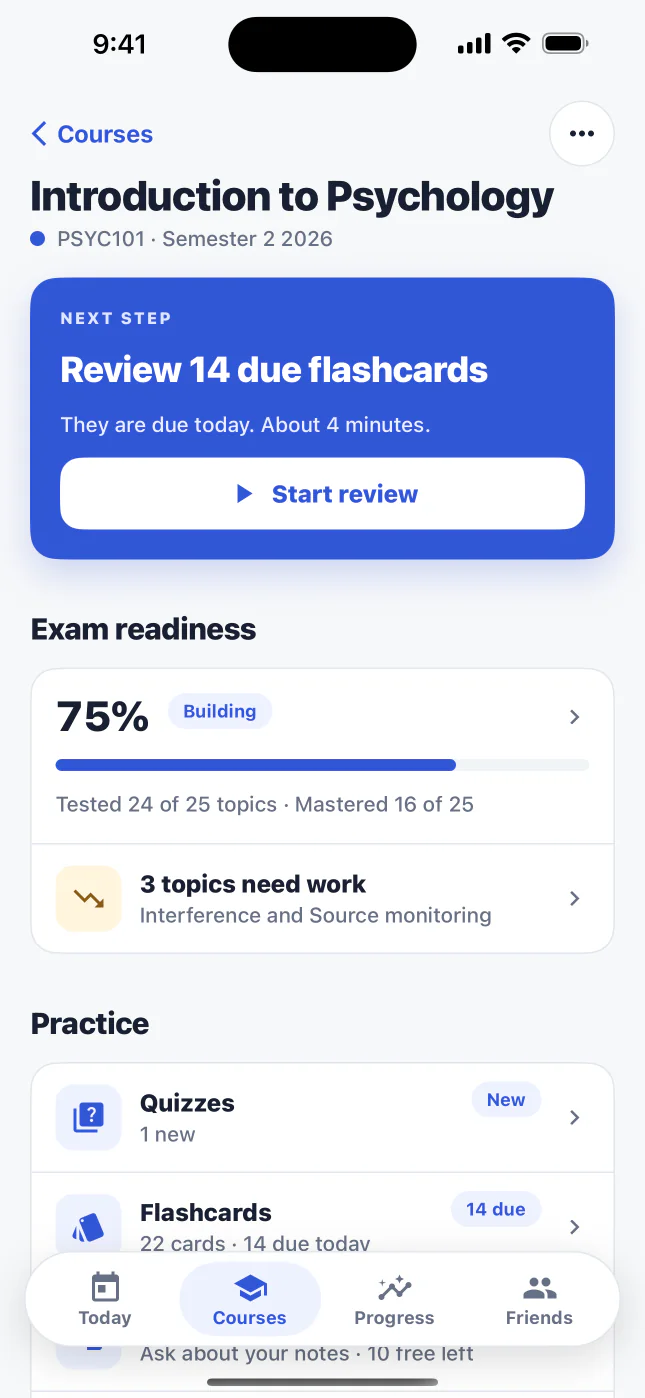
A course keeps its next step, practice and materials in one place.
1. Add your material
Give BetterGrades a source worth studying
Your files determine the context for every quiz, flashcard, and Coach answer. Add material that reflects what your course teaches and keep each upload connected to the right course.
- 01
Choose a supported file
BetterGrades accepts PDF, Word, PowerPoint, and Excel files up to 25 MB. Tap Add material (the plus on Today, or inside a course). You can also share a file to BetterGrades from Files, Mail or Drive.
- 02
Pick the course
The sheet says Adding to and names a course, the one you studied last. Tap Change to pick another, or create a new course and give it a name you will recognise during revision.
- 03
Wait for the source to become ready
BetterGrades extracts useful concepts and source context before it builds study tools. The sheet shows the real stage and percent. You can close it: the file keeps preparing and shows as Ready to study in Course materials.
- 04
Open the material before you trust a question
Use the source reference on a quiz, flashcard, or Coach answer to check the original wording. This habit helps you catch a misleading summary or an AI mistake early.
Use lecture notes to test the concepts your lecturer introduced.
Use readings to practise definitions, arguments, and examples.
Use a past exam to rehearse the style and topics you expect to see.
Give similar material clear filenames so you can choose the right source later.
If processing fails
The sheet says why and offers Try again or Choose a different file. Password-protected, corrupt, or unreadable files may need a clean export before BetterGrades can use them.
Your consent matters
BetterGrades asks for permission before it sends course material to OpenAI for requested study tools and Coach answers. Review Allow AI processing in Account whenever you need to.
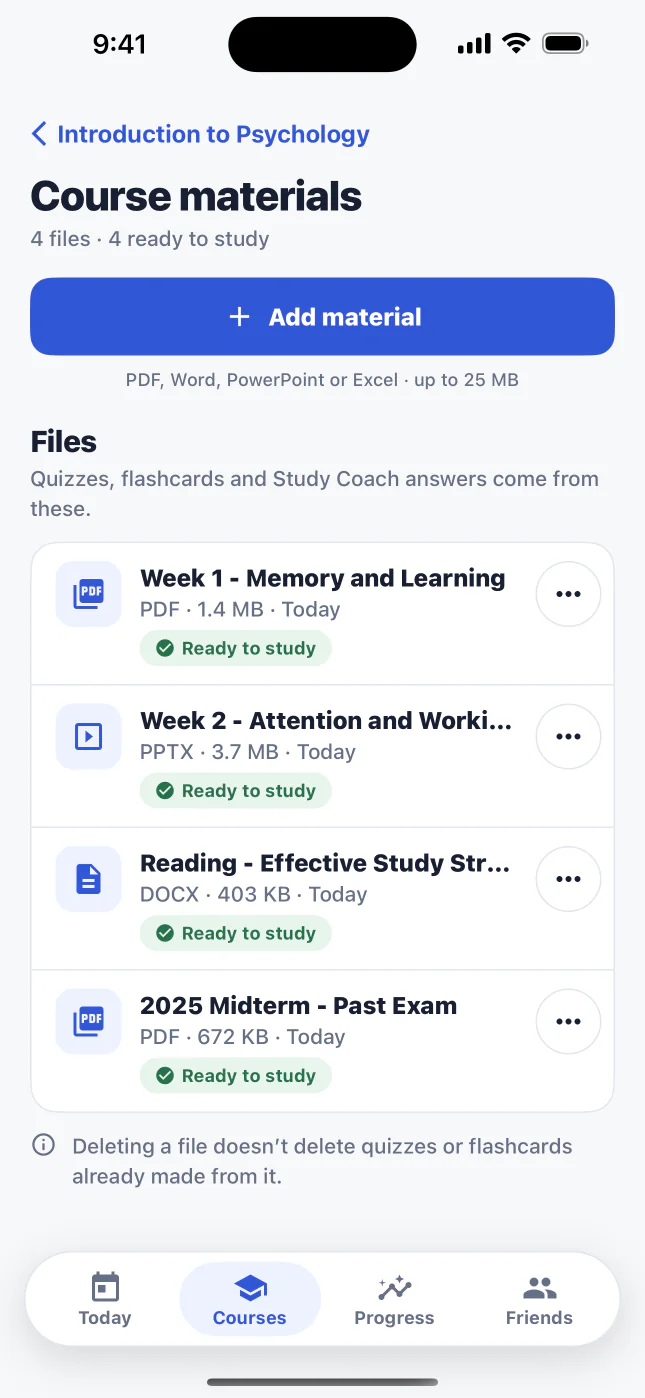
Course materials lists every file in a course and whether it is ready to study.
2. Make better quizzes
Choose the source, the length and the difficulty
The New quiz sheet lets you choose what to practise from, how many questions, and how hard. Use those choices to change the job of the quiz instead of making the same kind of practice every time.
- 01
Open New quiz
Open a course, choose Quizzes, and tap New quiz. Under Practice from, choose one or more materials. A ready material shows how many questions are ready.
- 02
Set a useful length
Tap Edit on the settings row to choose 5, 10, 15 or 20 questions. Five is a quick check, ten a normal revision block, and twenty suits a longer session.
- 03
Match difficulty to your goal
Easy focuses on recall. Medium asks you to apply an idea. Hard gives you a stronger challenge. Start at Medium when you want a balanced check, then move up when the basics feel familiar.
- 04
Read what the sheet tells you
The sheet says whether the questions are ready now, partly ready, or will take about a minute the first time. When only some are ready, you can start with those or wait for all of them.
- 05
Start the quiz and keep studying
Tap Start quiz. It returns at once and the quiz builds in the background. A pill above the tab bar shows how many questions are ready, and you can leave the screen. When it is ready, tap Start. If a build fails, the app says why and that it used no build.
A reliable quiz pattern
Use five or ten Medium questions after a lecture. Review every miss, wait a day, then try a focused quiz on the concepts you still hesitate over.

Choose what to practise from, then how many questions and how hard.
3. Learn from quiz feedback
Treat every missed answer as a study instruction
A quiz score describes one attempt. The useful part comes after you submit: BetterGrades puts the questions you missed first, with the explanation and the line from your notes behind each one.
- 01
Finish the set before checking the answer
Commit to an answer, even when you feel unsure. Retrieval gives you a clearer signal than rereading the prompt until it feels familiar.
- 02
Start with Fix these first
The results open on Fix these n first. Open each missed question to see your answer, the correct one, why it is right, and what to notice: did you forget a definition, confuse two ideas, or apply a process in the wrong order?
- 03
Follow From your notes
The From your notes line names the file and page, and quotes the passage. Compare the explanation with your material, and keep a short note in your own words if the concept still feels unclear.
- 04
Choose the next action
Tap Re-test these n topics to build a short quiz on what you missed, or Retake the same quiz later. You can also review related flashcards or ask Study Coach to explain the concept from your course material.
Use scores with context
A score helps you compare your practice over time. It does not predict an official course grade or prove that you have covered an entire exam.
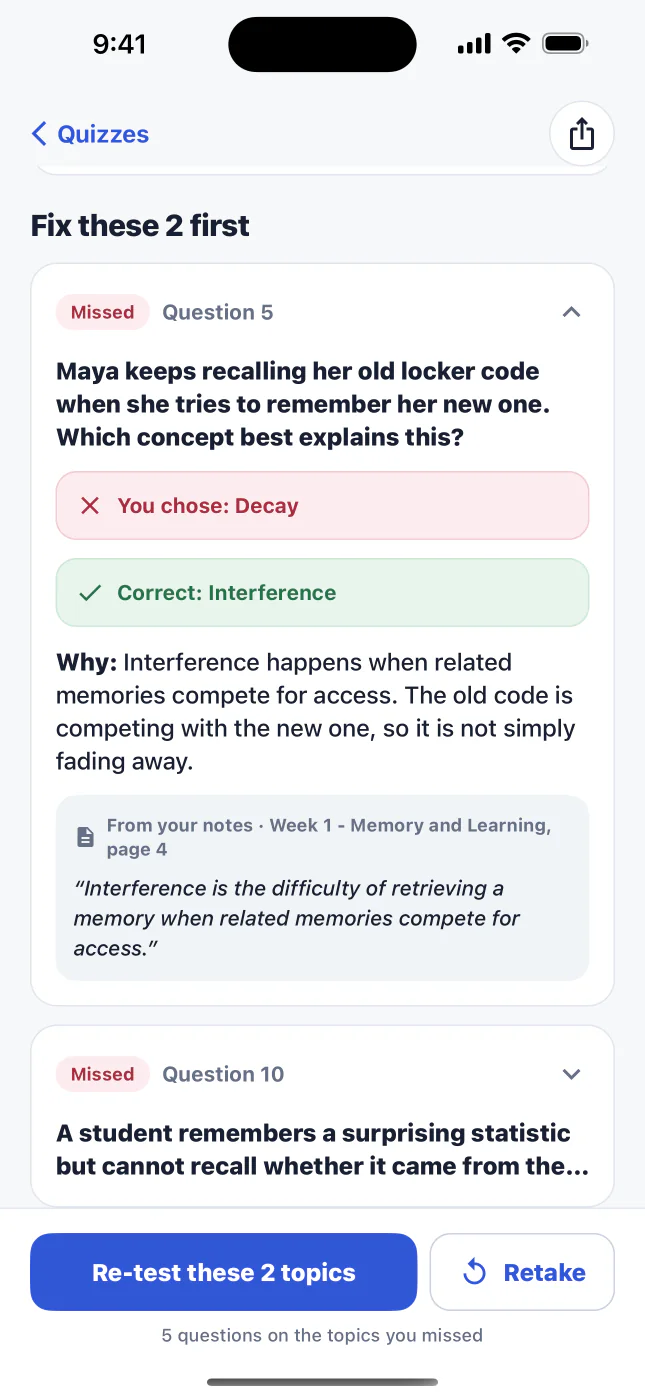
Missed questions come first, each with the line from your notes behind it.
4. Review flashcards
Turn recognition into recall
Flashcards work when you answer before you reveal. BetterGrades uses your rating to schedule the next review, so an honest response creates a more useful queue than a generous one.
- 01
Generate a deck from a ready source
Open a course, choose Flashcards, and make a deck from a ready material. Choose 10, 20 or 30 cards. New decks need a connection.
- 02
Say the answer before you tap
Read the front, pause, and answer in your head or out loud. Tap the card or Show answer only after you commit.
- 03
Rate the effort, not the feeling
Choose Again if you forgot, Hard if you remembered with effort, Good if you remembered, or Easy if the answer came instantly. Your answer sets when the card comes back.
- 04
Return when cards become due
Today and the course page show how many cards are due. Your deck, at the top right of a review, lists every card by stage: New, Learning, Familiar and Mastered.
Make the card do one job
If a card asks for a long list or a whole lecture, split the idea into smaller prompts in your own notes or edit the card in Your deck.
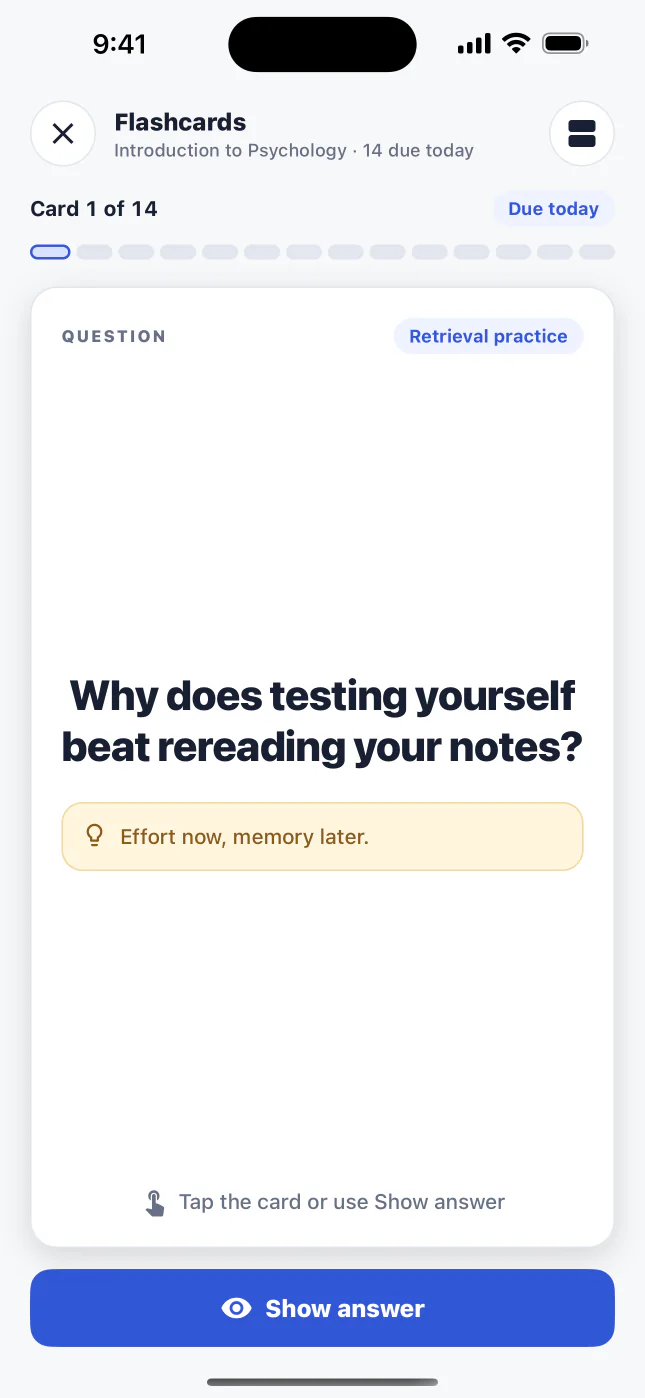
Say the answer first, then tap the card or Show answer.
5. Find your next topic
Let your weak topics shape the next session
You do not need to guess what to revise next. Today, each course page, and Exam readiness connect your practice history to one concrete next step.
- 01
Start with Today
Today shows one blue card with your next step across all courses, such as reviewing due flashcards or re-testing weak topics. A course page shows the same step for that course.
- 02
Read Exam readiness as a map
Open Exam readiness from a course. It shows your practice estimate, how many topics are tested and mastered, and every topic as Not tested yet, Needs work or Strong.
- 03
Open the weakest topic
Tap a topic to open its sheet: the practice estimate, how many quiz answers were correct, its flashcards, and its source. Sort the list by Needs work first, Importance, or A to Z.
- 04
Practise just that topic
From the sheet, take a quiz or review the topic’s flashcards. A topic you have not tested yet goes straight to a new quiz. Focus Pass, in the Quests on Progress, can build a short quiz from your weakest topic when you want a guided option.
Start with one topic
Pick one topic that needs work, practise it, and check the source. A focused session gives you a cleaner signal than opening every topic at once.
Readiness is study guidance
Exam readiness helps you choose practice, and says so on screen: a practice estimate, not an official grade, a prediction, or proof of complete exam coverage. A topic you have not tried says Not tested yet, never a low score.

Exam readiness turns recent practice into a next-topic decision.
6. Ask Study Coach
Use Coach to explain, question, and plan
Study Coach answers within a course and shows the pages it used as source chips under each answer. Ask for one clear job at a time so the answer helps you practise rather than replace your thinking.
- 01
Ask about the course you are studying
Open Study Coach from the course’s Practice list and keep your question tied to the material you uploaded.
- 02
Give the answer a job
Ask Coach to explain a distinction, quiz you without showing the answer, compare two concepts, or suggest the next review action.
- 03
Use prompts that create practice
Try: Explain encoding versus storage in two sentences. Quiz me on the working memory model one question at a time. What should I review before I retake my quiz?
- 04
Check the reference before you rely on it
Read the source chips under the answer and compare important definitions, formulas, dates, and processes with your original material or lecturer guidance.
- 05
Keep an eye on your answers
The line above the message box shows how many Study Coach answers you have left and when they reset. A limit applies when you send a question, and your question stays in the box.
Coach can make mistakes
Treat an answer as a study aid. Check important information against your source material and ask your lecturer or tutor when the source and answer disagree.
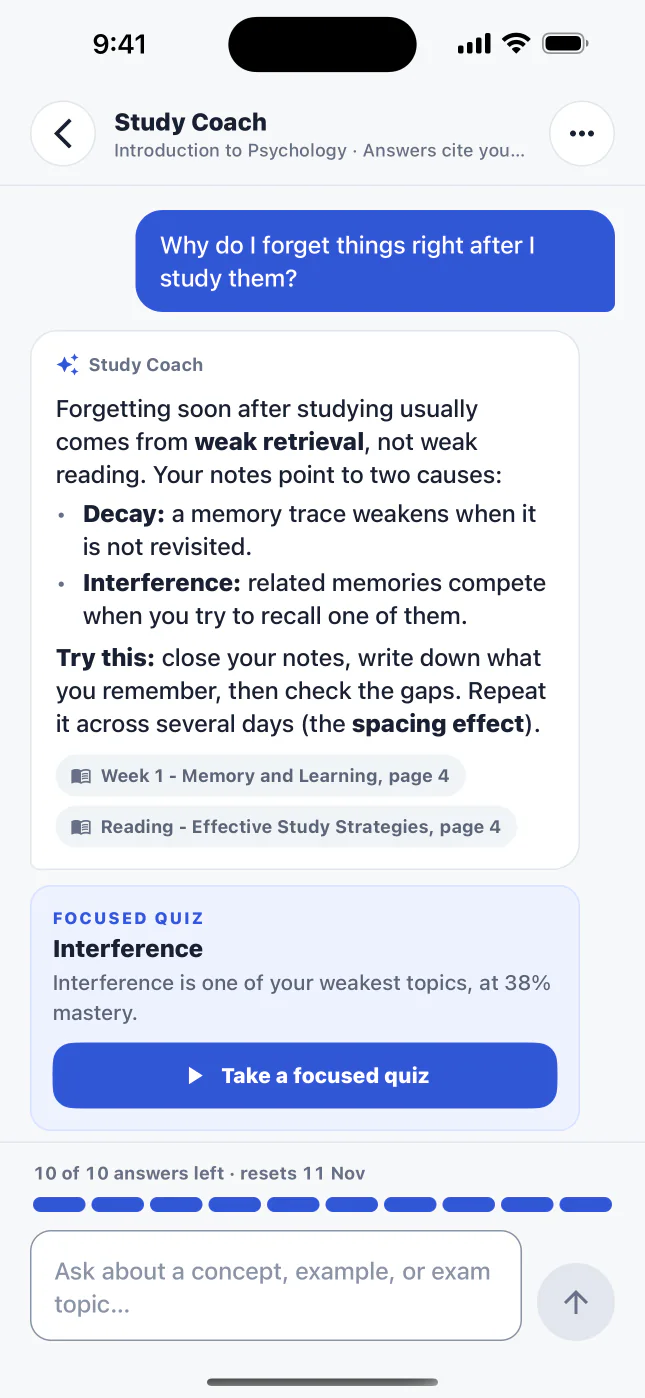
Coach cites the pages it used, can suggest a focused quiz, and shows how many answers you have left this month.
7. Build a repeatable routine
Use the app around your course week
The best study plan is one you can repeat between lectures, work, and other commitments. Use short sessions to keep concepts active, then use targeted practice when a topic needs more time.
- 01
After each lecture
Upload the lecture or reading to the right course. Create a five- or ten-question quiz while the ideas are still fresh.
- 02
On the next study day
Review due flashcards first. Do not reveal the answer until you have tried to recall it, then rate the effort honestly.
- 03
When a quiz shows a weak topic
Read the explanation and source, then re-test the topics you missed or make a card set for the weak concept. Study the smallest useful unit before moving on.
- 04
Before the exam
Use Exam readiness to choose a final review order. Mix recall, application, and source checking instead of rereading every file from the beginning.
A 20-minute session: five minutes of due cards, ten minutes of quiz practice, five minutes of reviewing misses.
A longer session: repeat the loop with a second weak concept or a harder quiz.
A weekly check-in: review Progress, then choose one course that needs attention next.
Set a daily study reminder in Account when a regular time helps you protect the habit.
Rewards are feedback for your routine
Streaks, XP, quests, and milestones encourage activity. They do not measure your intelligence or academic ability. Choose the task that improves your understanding.
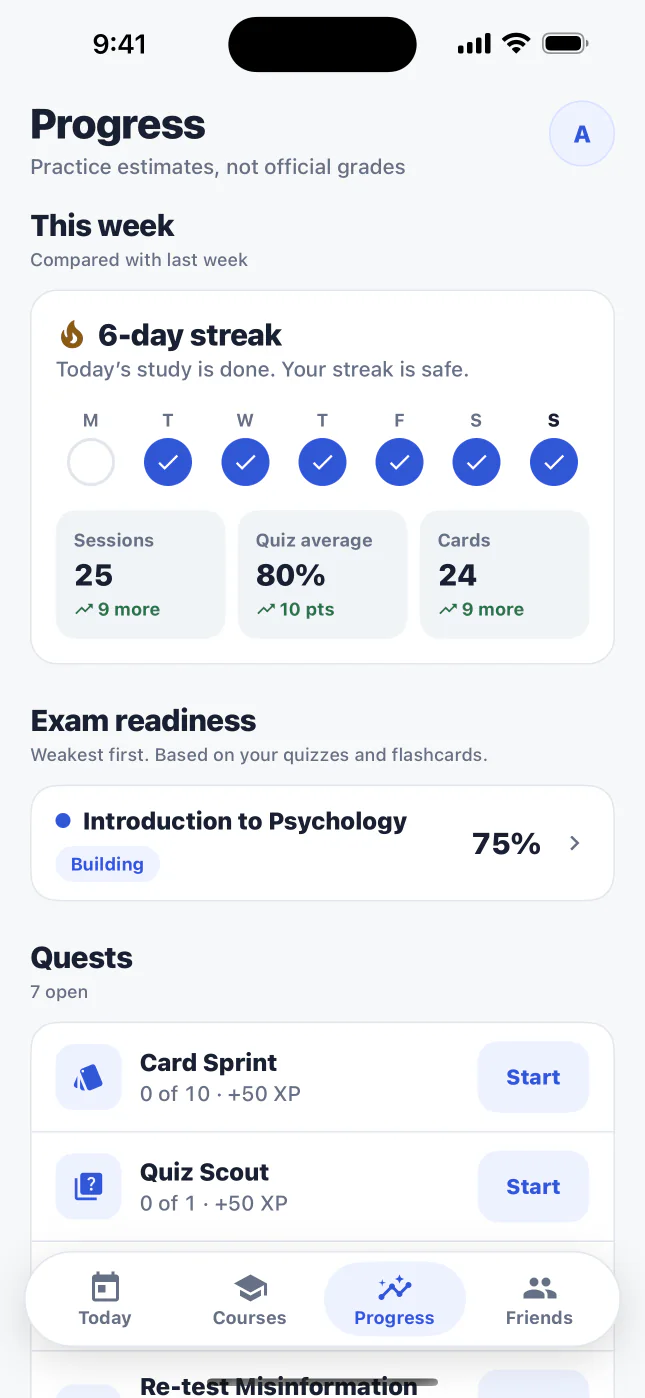
Progress shows your week, your exam readiness and your quests, and says plainly that they are practice estimates, not grades.
8. Use progress and rewards well
Let momentum support the work
BetterGrades records the activity that helps you keep studying. Use those signals to plan your week, not to turn revision into a points chase.
Open Progress to see your streak, the days you studied this week, and your sessions, quiz average and cards against last week.
Use Quests on Progress to turn a large plan into a small action such as reviewing ten cards or taking a quiz.
Use Focus Pass when you want a short quiz built from a weak topic rather than another broad review.
Try the Arena in a course when you want timed practice on what you have not mastered yet.
Use Study Wrapped or sharing only when the summary helps you reflect on your routine.
Choose a useful reward target
Pair a quest with a study action. For example, complete Card Sprint by reviewing cards you actually find difficult, not by tapping through familiar answers.
9. Go further
Use the optional tools when they fit your week
The core loop carries most of your study. These tools add variety when you want a challenge, need to study without a connection, or want friends to help you stay accountable.
- 01
Review offline
Flashcards and quizzes saved on your device remain available for review when you are offline. Saved on this device, in Account, shows what is stored. New study generation needs a connection, and progress can sync after you reconnect.
- 02
Try the Arena
Enter a timed run of questions on what you have not mastered yet. Use the feedback after each question to decide whether you need cards, a focused quiz, or a source review.
- 03
Take a concept bounty
A concept bounty gives one developing concept a focused set of flashcards. Treat the result as another signal about what to practise next.
- 04
Challenge a friend
Friends supports duels, best-score challenges, a weekly goal and a ladder. Invite a classmate from Friends or Account when friendly accountability helps you show up.
Keep social optional
Accepted friends can see only the study signals you choose to share. Your course material, answers, and private content stay private.
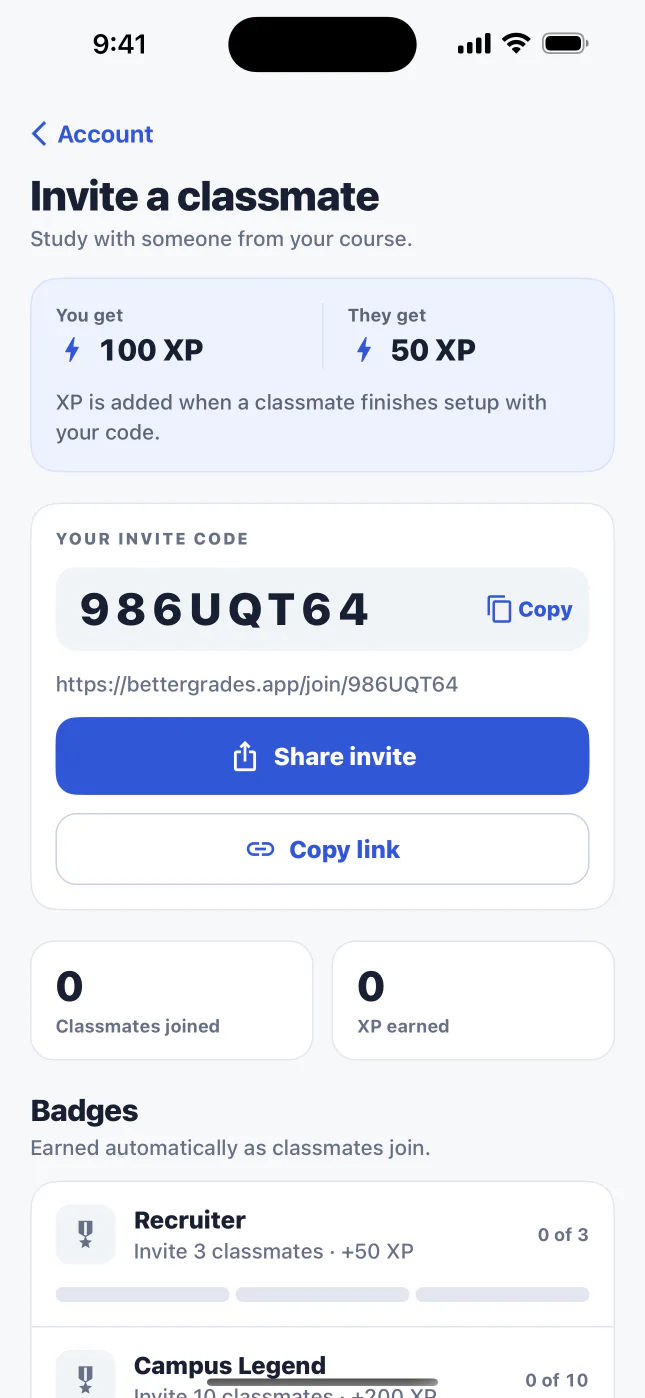
Invite a classmate from Account, then challenge each other in Friends. Your course material stays private.
10. Manage your account
Choose what the app stores, shares, and reminds you about
Account lets you shape BetterGrades around your schedule and privacy preferences. Open it from your initial at the top of a tab (on iPad, from the profile row in the sidebar). Review these controls when your routine changes or when you start studying with classmates.
Daily study reminder: choose when BetterGrades reminds you to study.
Saved on this device: see what the device saved for review and clear a course download when you need space. Clearing saved data does not remove your online course or progress.
Friend updates: control alerts for invitations and accepted requests.
Share study activity: decide whether accepted friends can see your current streak and whether you studied today.
Let friends challenge me: decide whether friends can play against your best score.
Allow AI processing: decide whether BetterGrades can send course material and Coach questions to OpenAI for the tools and answers you ask for.
Your plan: see how many study builds and Study Coach answers you have left and when they reset, manage your plan, sign out, or delete your account.
Review before sharing
Turn on only the social signals that make your study better. You can change these settings later without sharing course content.
11. Limits and recovery
Know what to expect when a limit or error appears
Clear limits help you plan your study builds. When something fails, the app keeps the recovery path close to the message so you can fix the source, reconnect, or choose a smaller request.
Making a quiz or a flashcard deck is a study build, and Study Coach answers are counted too. Account shows how many you have left and when they reset. Check the counter in Coach when you plan a longer question session.
Plans, prices and billing are handled by the App Store and Google Play, which show them in your own currency. Manage or cancel a subscription in your store’s subscription settings.
Saved study tools stay available if you cancel a subscription.
If a material can only support a shorter quiz, the app says how many questions it has. A quiz under 5 questions does not use a build.
If a build fails, the app says why and that it used no build. Reconnect and try again. Offline review still works for saved quizzes and flashcards.
If an answer looks wrong, open its source reference and compare it with your material before studying from it.
The store handles plans and prices
The app shows what you have left and when it resets. Check the App Store or Google Play, and Account, before making a billing decision.
Need help?
Contact support@bettergrades.app with the course, screen, and action that failed. Do not include your sign-in code or sensitive course material in the message.
Quick reference
Your next six study moves.
Save this list for the start of a session. It keeps the app focused on the work that helps you understand the material.
01
Add one ready course source, then check the source reference before you trust a question.
02
Use a five- or ten-question Medium quiz after a lecture to get a fast signal.
03
Fix what you missed first, then make another quiz.
04
Answer flashcards before you reveal them, then rate your recall honestly.
05
Use Today and Exam readiness to choose one topic for your next session.
06
Check important AI answers against your original material.
Quick answers
Questions students ask before they start.
What should I upload first?
Start with one lecture, reading, or past exam from the course you want to study. A focused source helps BetterGrades create clearer practice and gives you a simple first session.
Which file types can I use?
BetterGrades accepts PDF, Word, PowerPoint, and Excel files up to 25 MB. iPhone also supports document handoff through the Share Sheet or Open In menu.
How do source references help?
Questions, flashcards, and Study Coach answers can point back to the course material used to create them. Open the reference when you want to check a definition, explanation, or process against the original source.
Can BetterGrades replace my lecture or textbook?
No. BetterGrades turns your material into practice and helps you choose a next topic. Keep using your lecturer guidance, readings, and original sources as the authority for your course.
Can I study without internet?
You can review saved flashcards and quizzes offline. New uploads and study generation need a connection. Progress can sync after you reconnect.
What happens when I reach a monthly limit?
The app shows your study-build or Coach-answer usage and the reset date. You can wait for the reset, request a smaller study activity when the source supports it, or look at the plan options in the app and your store.
Is my course material visible to friends?
No. The privacy switches in Account control study signals such as your streak or whether you studied today. Your course material, answers, and private content remain private.
What should I do if an AI answer looks wrong?
Open the source reference and compare the answer with the original material. Check important information with your lecturer or tutor when the source and answer disagree.
I can’t find Home, Quiz Lab or Settings. Where did they go?
The 0.4.0 update renamed some screens. Home and Study are now Today, Social is Friends, Quiz Lab is Quizzes inside each course, and Settings is Account. Weak Topics is now part of Exam readiness: tap a topic to open its sheet.
Does BetterGrades work on iPad?
Yes. On iPad, a sidebar holds Today, Courses, Progress and Friends, and a course opens in two columns, so your next step, practice, exam readiness and materials sit on one screen. Quizzes, flashcards and Study Coach open in a centred column.


Start with one course source.
Add a lecture, reading, or past exam, then let your practice show you what to do next.



On a laptop? Scan to get the app on your phone.